 SyncFolder
Internal, External or Network Drive
This location type — Internal, external (usb,..) or network drive in the app — covers all storage that Windows exposes through the standard file system: built-in drives, USB drives and SD cards, and network shares (NAS). After selecting this type and clicking Select drive/folder, a Windows folder picker opens to let you choose the root folder for the task.
Storage Categories
| Category | Typical examples |
|---|---|
| Internal storage | Built-in HDD or SSD (e.g. C:\, D:\) |
| External storage | USB drive, SD card, external SSD |
| Network drive | NAS share, shared folder on another PC |
Internal and External Drives
- In the left navigation panel of the folder picker, choose the drive (e.g.
C:\,E:\). - In the right panel, navigate to and select the desired root folder for the task.
- Confirm the selection.
For removable devices such as USB drives and SD cards, make sure the device is connected before opening the folder picker so it appears in the left navigation panel. SyncFolder recognizes the device later even when Windows assigns it another drive letter. What happens when the device is missing is set in Actions with Removable Devices.
Network Drives
A network share can be selected in two ways, depending on whether it is already mounted in Windows.
Option 1 — Through the Network Path (Recommended)
Type the address of the NAS or PC directly into the address bar at the top of the folder picker and press Enter. Use UNC notation with at least the server name or IP address:
\\192.168.1.10
\\mynas
\\mynas\documents
After pressing Enter, the picker lists the available shares. Open a share, navigate to the desired folder and confirm the selection. You can also browse to the share through the Network section of the folder picker.
Option 2 — Through a Mapped Drive Letter
If the share has been mapped in Windows Explorer (it has a drive letter, e.g. Z:), it appears in the left
navigation panel like a local drive. SyncFolder then looks up the network name behind the drive letter,
because drive letters are not always available when tasks run in the background (see below).
The Network Share Dialog
After you select a folder on a network share, SyncFolder shows the dialog Shared folder on … with the text "You have selected folder … on a network drive." (or "You have selected the top level folder on a network drive.").
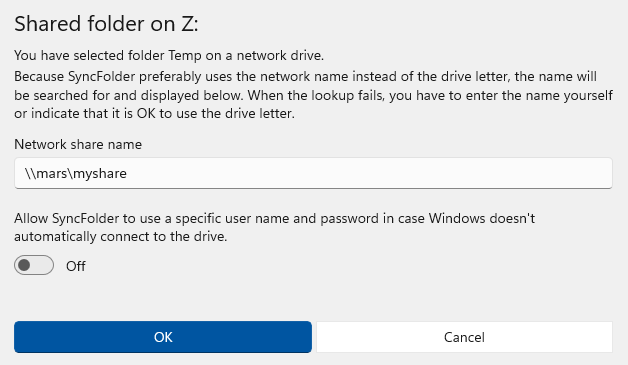
Because SyncFolder preferably uses the network name instead of the drive letter, the name will be searched for and displayed in the text box. When the lookup fails, you have to enter the name yourself or indicate that it is OK to use the drive letter.
The name has the form \\server\share. Normally SyncFolder fills it in for you.
Only shown when you selected the folder through a drive letter and SyncFolder can't find the network name behind it. Prefer entering the network name; use the drive letter only if that is not possible.
SyncFolder typically uses the login credentials that Windows has already saved for you in its Credential Manager.
However, if Windows does not have an active or valid connection (for example, following a new installation,
a changed NAS password, or when using an IP address instead of the machine name in the app), the app gives you the option to
explicitly configure your login details to prevent connection errors.
Set the toggle switch to On and enter the User name and Password for the network share.
The credentials are stored encrypted.
Click Test connection to check them. Possible results:
- Connection succeeded — the share can be reached with these credentials.
- Invalid username and/or password or access is denied. — check the account and its permissions on the NAS.
- Could not connect. — the server can't be reached; check the network name and the network.
- Windows already has an active network connection to this server … — Windows doesn't allow a second sign-in with other credentials while a connection is open (for example through a mapped drive). SyncFolder will use the existing connection when the task runs. To test anyway, disconnect the server first and run the test again.
Click OK to save. You can reopen this dialog later with the Network button next to the location on the Task configuration page.
You can also save the credentials in Windows itself: when Windows asks for them in the folder picker, check Remember my credentials. The connection then works without credentials in SyncFolder. Storing them in SyncFolder as well is a useful fallback, for example for tasks that run at startup.
If no credentials are available — neither saved in Windows nor stored in SyncFolder — and the share requires authentication, the task fails with "The shared network folder in the source location is not accessible" (or target location). See Error Messages.
WebDAV Servers
Cloud storage with WebDAV (Nextcloud, pCloud, Koofr, …) has its own location type with provider presets, app-password support and automatic detection of the WebDAV path. Use Cloud storage via WebDAV instead of entering a WebDAV address in the Windows folder picker.
Related topics: Storage Location · Actions with Removable Devices · WebDAV · SyncFolder Mobile Sync