 SyncFolder
Configuring a Task
A task tells SyncFolder what to copy, where to copy it from and to, which copy method to use, and when to run automatically in the background. All of this is set on the Task configuration page, which opens when you create a new task on the Home page or click Configure on the Tasks page. This page walks through every setting in the order you'll typically configure them.
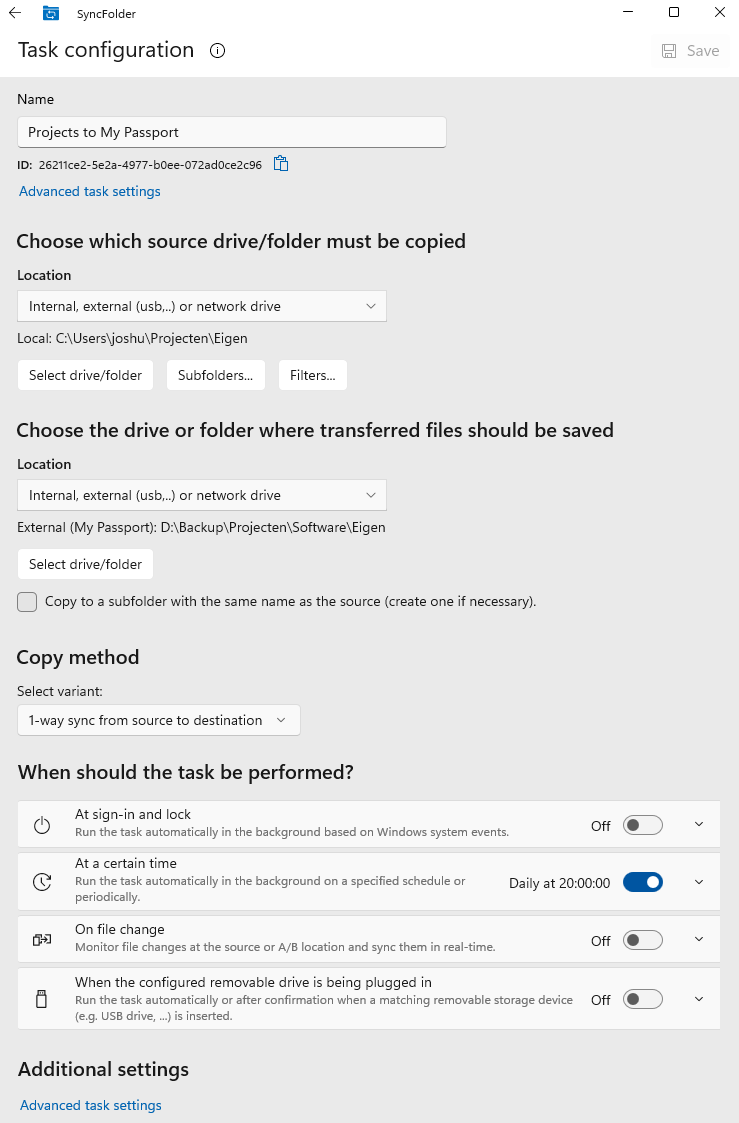
What You Configure
- Name — a descriptive name to identify the task.
- Source location — the drive, folder or service the files are copied from (Location A for 2-way sync).
- Destination location — the drive, folder or service the files are copied to (Location B for 2-way sync).
- Copy method — 1-way sync, 2-way sync, copy, or cut and move.
- When should the task be performed? — the automatic triggers.
- Advanced task settings — optional, fine-grained control over task behavior.
Click Save (top right) to store the task. If you leave the page with unsaved changes, SyncFolder asks "One or more properties of the task have been changed. Please indicate whether the changes must be saved or ignored." — choose Save or Don't save.
Name
Every task needs a name. SyncFolder suggests a default name (e.g. Task12), but you can change it to
anything that helps you recognize the task in the task list — for example Backup Photos to NAS or
Mirror Documents to OneDrive.
Below the name field, SyncFolder shows the task's unique ID, with a button to copy it to the clipboard (Copy ID to clipboard). You need this ID to run the task from the command line, and it is useful when contacting support.
Source and Destination Location
Every task needs a source location to copy from and a destination location to copy to. The sections are titled:
| Task type | Source section | Destination section |
|---|---|---|
| 1-way sync, copy, cut and paste | Choose which source drive/folder must be copied | Choose the drive or folder where transferred files should be saved |
| 2-way sync | Choose drive/folder of location A | Choose drive/folder of location B |
Each location is set up the same way: choose a location type from the dropdown, then click Select drive/folder to point SyncFolder to the exact folder. Until you do, the section shows "No drive or folder selected yet. Please select one."
| Location type | Source / A | Destination / B | 2-way |
|---|---|---|---|
| Internal, external (usb,..) or network drive | ✓ | ✓ | ✓ |
| Phone, tablet or other mobile media device | ✓ | ✓ | — |
| FTP/FTPS server | ✓ | ✓ | — |
| SFTP server - SSH File Transfer Protocol | ✓ | ✓ | — |
| OneDrive | ✓ | ✓ | ✓ |
| Google Drive | — | ✓ | — |
| Cloud storage via WebDAV (Nextcloud, pCloud, Koofr, …) | ✓ | ✓ | ✓ |
| SyncFolder Mobile Sync (Android) | ✓ | ✓ | ✓ |
For full details on each location type — including how the folder picker works and how to enter credentials — see Selecting a Storage Location.
Buttons Next to a Location
| Button | What it does |
|---|---|
| Select drive/folder | Opens the folder picker for the selected location type. Each location type comes with its own folder picker. For more information on how to use the picker, consult the documentation for the selected location type under Selecting a Storage Location. |
| Subfolders... | Chooses which top-level folders are included (see below). |
| Filters... | Opens the Filters dialog (see below). |
| Network | Only for a folder on a network share: reopens the network share dialog, where you can change the share name and the credentials SyncFolder uses. See Internal, External or Network Drive. |
For 2-way sync tasks, Subfolders... and Filters... are grouped in a separate section Subfolders and filters ("Configure subfolders and filters in order to exclude files and folders."), because they apply to both locations.
Checks When You Select a Folder
Destination is not empty. For a 1-way sync task, SyncFolder warns when the destination already contains files: everything at the destination that doesn't exist at the source (and is not excluded by a filter) will be deleted when the task runs. If that is the case the first time the task runs, nothing is deleted yet; you get a notification to confirm first. Click Continue to keep the folder, or Select folder again.
Destination inside the source. A destination that is part of the source (with the included top-level folders) is not allowed, because the task would copy its own output again and again. SyncFolder shows an error and asks you to select another folder.
Copy to a Subfolder with the Same Name
Below the destination location there is a check box
Copy to a subfolder with the same name as the source (create one if necessary). When checked,
SyncFolder doesn't copy the contents of the source folder directly into the destination folder, but into a
subfolder named after the source folder. For example, with source D:\Projects and destination
E:\Backup, the files end up in E:\Backup\Projects. Not available for 2-way sync tasks.
Subfolders
The SUBFOLDERS dialog controls which top-level folders of the location are part of the task:
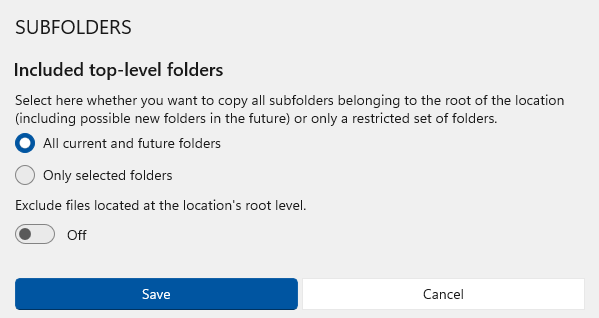
Select here whether you want to copy all subfolders belonging to the root of the location (including possible new folders in the future) or only a restricted set of folders.
- All current and future folders — every folder in the root, including folders created later.
- Only selected folders — only the folders you check in the list. When you select this the dialog will present a list containing each of the first-level subfolders and a checkbox for each of them.
When on, files directly in the root folder are skipped; only the (selected) subfolders are processed.
Filters
The FILTERS dialog lets you exclude (or include only) specific folders and files using glob patterns, and exclude hidden and system files. Filters are covered on their own page — see Using Filter Patterns.
Copy Method
Under Copy method, select a variant:
| Variant | Behavior |
|---|---|
| 1-way sync from source to destination | The destination always becomes an exact copy of the source. Files at the destination that no longer exist at the source are deleted. |
| 2-way sync between location A and B | Files are copied in both directions to reconcile changes. Files are expected to change in both locations; the two locations are considered equivalent. |
| Copy source to destination | New and modified files are copied, but files at the destination that no longer exist at the source remain there. |
| Cut and move source to destination | All files and folders at the source are moved to the destination. |
When you create a new task on the Home page the variant is preselected based on the button used on the Home page. 2-way sync is only available when both location types support it. See Task Types for a detailed comparison.
When Should the Task Be Performed?
SyncFolder can run a task automatically in the background. Each trigger has its own On/Off switch, so you can combine several — for example, run on file change and also at a certain time as a fallback. Tasks without any trigger are marked Manual in the task list and only run when you start them.
Automatic triggers only work while SyncFolder is allowed to start with Windows. See Running in the Background.
At Sign-In and Lock
When this trigger is enabled the task runs automatically in the background based on a number of Windows system events. Under Trigger condition, check one or more events:
- Sync when Windows starts — runs the task after Windows has started and you have signed in.
- Sync when I unlock my PC — runs the task every time you unlock your PC.
- Sync when my PC locks — runs the task when you lock your PC, for example when you walk away.
Network locations and locking. While the PC is locked, Windows may disconnect network connections. A task that needs a network share or server and runs at lock may then be skipped with "Sync failed: Server unreachable". For tasks with a network location, prefer Sync when I unlock my PC or a schedule.
If the drives used by a task need some time to become available after sign-in, set a Startup delay on the Settings page.
At a Certain Time
When this trigger is enabled the task runs automatically in the background on a specified schedule or periodically. Choose the interval and set the Time for automatic execution:
| Option | Settings | Shown in the task list as |
|---|---|---|
| Daily | Time of day | Daily at 22:00 |
| Weekly | One or more weekdays and a time | Weekly on … at … |
| Monthly | Day of the month and a time | Monthly on day … at … |
| Periodically | Every so many hours and minutes. Minimum 0h 02m, maximum 23h 59m. Default 15 minutes. | Every 0 h 15 m |
If a scheduled run fails because a drive or server is not available, SyncFolder retries later. You are only notified after a number of failures in a row — see Background failure threshold in Performance Settings.
On File Change
Select this option if you want SyncFolder to monitor file changes at the source or A/B location and sync them in real-time.
Sets the amount of time to wait after the last file change before copying. This ensures that files are only copied after changes have settled and no other files are being modified.
This trigger is available for 2-way sync tasks and for tasks whose source is an internal, external or network drive.
When the Configured Removable Drive Is Being Plugged In
This trigger only appears when the source or destination is on a removable device, such as a USB drive or a phone. When enabled the task is run automatically or after confirmation when a matching removable storage device is inserted.
When unchecked, the task starts automatically as soon as the device is plugged in. When checked, SyncFolder shows a notification first: "A device has been connected and recognized as source or target device for one or more SyncFolder tasks. Do you want to start synchronization?" with the buttons Yes, sync now and No, wait for the task running as planned.
This option needs notifications. If they are blocked, the page shows "SyncFolder is currently not allowed to send notifications. You can enable this in Windows Settings / System / Notifications."
Advanced Task Settings
The Advanced task settings button — near the top of the page and again under Additional settings — opens a dialog with additional options for fine-tuning how the task behaves. See Advanced Task Settings.
Related topics: Task Types · Storage Location · Filters · Advanced Settings