 SyncFolder
Task Groups
A group bundles two or more tasks so that they run one after the other. This is useful when tasks depend on each other — for example a backup to a NAS followed by a copy of that NAS folder to the cloud — or when you want to start several tasks with a single schedule.
Creating a Group and Adding Tasks
Groups are created from the Tasks page:
- On the Tasks page, select the task you want to add, click its … (more) button and choose Add to group.
- The Add to group dialog lists the Existing groups. If there are none yet, it shows "There are no groups yet.
Click the + button." Click + (Add a new group) to create one.
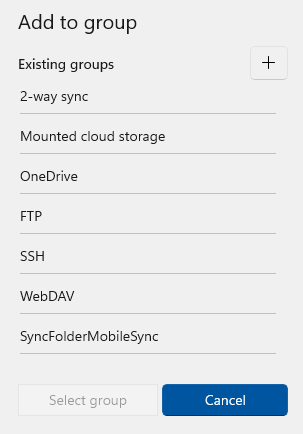
- Select the group and click Select group.
- Repeat for every task that must be part of the group.
A new group gets the default name Group. A task can belong to more than one group.
Configuring a Group
Click Configure on the group in the Tasks page. The Task configuration page of a group shows:
- Name — rename the group to something meaningful, for example Nightly backup.
- Tasks — the tasks in the group, each with its source, copy direction and destination. Use the button next to a task to remove it from the group.
- When should the task be performed? — the same automatic triggers as for a normal task (at sign-in and lock, at a certain time, when a removable drive is plugged in). See Configuring a Task.
- Advanced task settings — only the settings that apply to the group as a whole, such as the pre- and post-run actions.
A task that belongs to a group no longer runs on its own schedule or at sign-in and lock — those triggers are taken over by the group. In the task list, its own schedule is then shown greyed out.
Running a Group
You run a group like any other task: click Execute on the Tasks page, or let one of its triggers start it. SyncFolder runs the tasks of the group one by one.
The Status page of a group shows the overall result. When one of the tasks fails, the group status is An error has occurred. The detailed list of copied and deleted files is kept per task: "To see all executed actions you must open the Status page of each of the tasks that are assigned to the group."
An alternative to a group is a task chain: in the advanced settings of a task you can choose to Start another task (on success). Unlike a group, the next task in a chain only runs when the previous one succeeded. See Pre- and Post-Run Actions.
Related topics: Task Types · Running and Monitoring Tasks