 SyncFolder
Getting Started
This chapter explains how to install SyncFolder, what happens the first time you start it, how the Home page is organized, and how SyncFolder keeps running in the background so that your tasks can run automatically.
Installation
SyncFolder is distributed through the Microsoft Store and is free. It runs on Windows 10 (version 2004 or later) and Windows 11.
- Open the Microsoft Store app and search for SyncFolder, or use the download link on the home page of this website.
- Click Get (or Install) and wait until the installation has finished.
- Start SyncFolder from the Start menu.
Because SyncFolder comes from the Microsoft Store, updates are normally installed automatically. See Updates below.
First Start
Accept Terms of Use
The first time you start SyncFolder, the Accept terms of use dialog appears:
"SyncFolder is free software, built to make file sharing simple and secure." The dialog contains a link to the terms of service. Click I agree to accept them and continue. If you click Cancel, SyncFolder closes.
SyncFolder uses an error-tracking system that sends technical diagnostic data — crash reports, error logs and usage reports — with the sole purpose of finding and correcting faults in the app. These reports contain no personal information and no file names. You can switch this off here, or later on the Settings page (Error Reporting).
Permissions
After the first start, Windows may ask you for some permissions — for example to allow file system access, notifications, or a firewall rule for the mobile file server. These requests and what they are used for are explained on the Permissions page.
The Home Page
The Home page is the starting point of the app. Its title is What do you want to do?
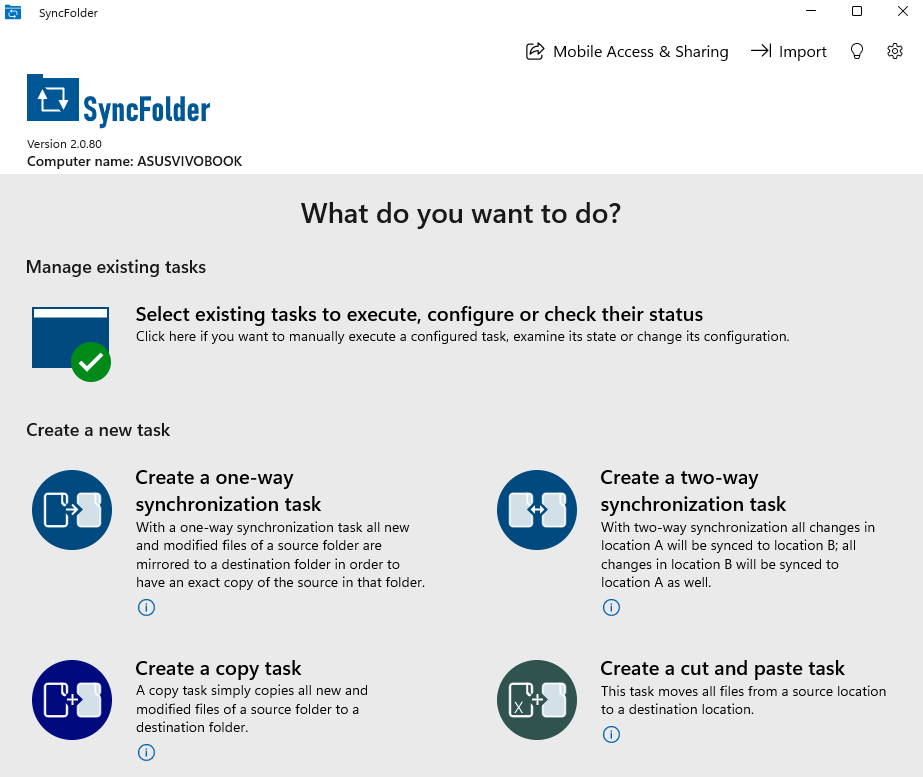
Toolbar
| Button | What it does |
|---|---|
| Mobile Access & Sharing | Opens the page where you share folders with the SyncFolder mobile app and pair mobile devices. See Mobile Access and Sharing. |
| Import | Imports photos and videos from a USB device, memory card or phone. See Importing Photos and Videos. |
| Help | Get more information about SyncFolder — opens the Support page of this website. |
| Settings (gear icon) | Opens the Settings page. |
The current app version is shown on the page. When a newer version is available, a New version available button appears next to it.
Manage Existing Tasks
Once you have created at least one task, the Manage existing tasks section shows the button Select existing tasks to execute, configure or check their status. It opens the Tasks page.
Create a New Task
The Create a new task section has one button per task type:
| Button | Creates |
|---|---|
| Create a one-way synchronization task | A 1-way sync task: the destination becomes an exact copy of the source. |
| Create a two-way synchronization task | A 2-way sync task: changes in location A and location B are synced to each other. |
| Create a copy task | A copy task: new and modified files are copied, nothing is ever deleted at the destination. |
| Create a cut and paste task | A cut and paste task: files are moved from the source to the destination. |
Each button has an information icon (Show more information about this type of task) that explains the task type in more detail. The differences are described on the Task Types page. Clicking a button opens the Task configuration page for a new task of that type.
Warnings on the Home Page
The Home page can show a warning bar at the top:
| Warning | Meaning |
|---|---|
| Task failure | One or more tasks have encountered an error during execution or require your attention. Open the Tasks page and check the status of the tasks marked in red. |
| Automatic syncs won't run | SyncFolder is not allowed to start together with Windows, so scheduled and other automatic tasks can't run. Click the button in the bar (Enable Startup or Open Startup settings) to fix this. See Running in the background. |
Running in the Background
SyncFolder runs continuously. When you close its window, the app keeps running in the background so that scheduled tasks, file-change triggers and USB-drive triggers keep working. To make that possible, SyncFolder registers itself as a Windows startup app: it starts automatically (without a window) when you sign in to Windows.
If SyncFolder is switched off under Windows Settings › Apps › Startup, automatic tasks don't run. The Home page then shows "SyncFolder is turned off in Windows startup settings, so automatic syncs won't run. Open Startup apps and switch SyncFolder on." If startup is blocked by your organization, the message reads "Startup is disabled by Group Policy / MDM."
System Tray Icon
When Show the app in the Windows system tray is on (see App Settings), SyncFolder shows an icon in the notification area of the taskbar. Right-click it for this menu:
| Menu item | What it does |
|---|---|
| Open app | Opens the SyncFolder window. |
| Stop all tasks | Stops all tasks that are currently running. Only available while a task is running. |
| Task schedular enabled | Shows (with a check mark) whether the task scheduler is active. |
| Close app | Closes SyncFolder completely. Automatic tasks no longer run until SyncFolder is started again (manually or at the next sign-in). |
If your tasks use network drives or USB drives that need some time to become available after you sign in, set a Startup delay on the Settings page so that automatic tasks don't start too early.
Updates
SyncFolder normally updates itself through the Microsoft Store. Because SyncFolder runs continuously, Windows can't always replace it on its own. When a new version is ready, SyncFolder shows the notification SyncFolder update available — "A new version is ready. SyncFolder runs continuously, so Windows can't install it on its own — this takes a few seconds."
- Install now — installs the update immediately. SyncFolder restarts afterwards.
- Remind me in … days — hides the notification for the number of days set on the Settings page (default 3).
You can also click New version available on the Home page. The New version available dialog shows the current and the new version and a What's new? link. Click Open Microsoft Store to update manually — this is needed when automatic updates are switched off in the Microsoft Store.
Related topics: Permissions · Task Types · App Settings