 SyncFolder
Google Drive
Destination only
This location type uploads files to a folder in your Google Drive. SyncFolder connects directly to Google's online service; no Google Drive client needs to be installed. Google Drive is available as the destination of 1-way sync, copy and cut-and-paste tasks. After selecting Google Drive and clicking Select drive/folder, the Select a folder on Google Drive popup opens.
Why destination only? For your privacy, SyncFolder only gets access to folders that it created itself in Google Drive — not to the rest of your Drive. A folder used as a source could contain files added by other apps or by you in the browser, which SyncFolder can't see. That is why Google Drive can't be used as a source or in a 2-way sync task.
Signing In
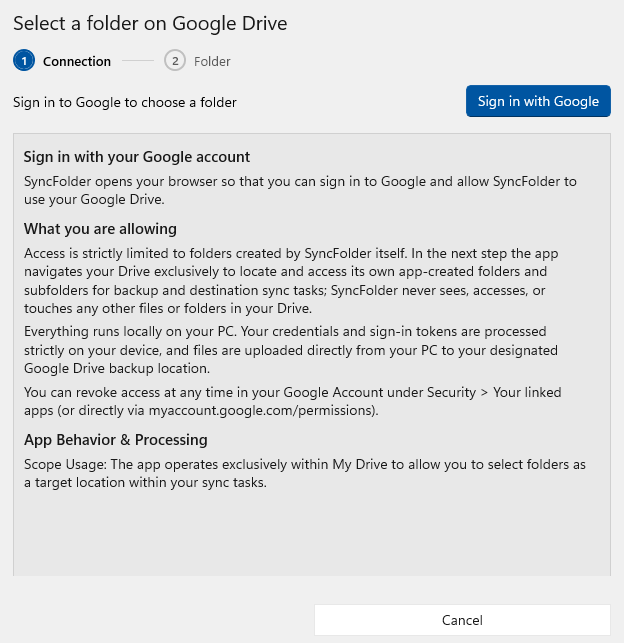
SyncFolder opens your browser so that you can sign in to Google and allow SyncFolder to use your Google Drive.
What you are allowing: access is strictly limited to folders created by SyncFolder itself. SyncFolder never sees, accesses or touches any other files or folders in your Drive. Everything runs locally on your PC: your credentials and sign-in tokens are processed only on your device, and files are uploaded directly from your PC to Google Drive.
You can revoke access at any time in your Google Account under Security › Your linked apps (or directly via myaccount.google.com/permissions).
- Click Sign in with Google. Your browser opens; the popup in the app shows "Finish signing in in your browser, then return here..."
- Then sign in with your Google account in the browser and allow SyncFolder access. When done, the browser shows "Authentication successful! You may close this window and return to the SyncFolder app."
- Return to SyncFolder and choose the folder (see below).
If you don't allow access in the browser, the popup in the app will show "Access was not granted. SyncFolder can only use Google Drive after you allow it." If signing in takes too long the popup will show: "Signing in took too long. Try again."
Choosing a Folder
If this is the first time you want to assign a Google Drive folder then the folder picker will show an empty My Drive root. Select My Drive then and click the New folder button.
- Under New folder, type the Name of the new folder and click Create. The folder is created in My Drive.
- Select the folder (or create a subfolder in it using New folder again) and confirm witth Select folder.
If you have already created folders before then find the folder in the tree view, select it and confirm by clicking Select folder.
Shared drives, files shared with you, and folders not created by SyncFolder are not shown.
The popup also shows how much of your storage is used.
Possible Problems
| Message | What to do |
|---|---|
| Access to your Google account was withdrawn or has expired. Sign in again. | Open the task, click Select drive/folder and sign in again. |
| The configured folder is no longer available on Google Drive: … | The folder was deleted or moved to the trash in Google Drive. Choose or create a folder again. |
| …: no folder was chosen on Google Drive yet. Open the task and choose one. | Finish the location setup on the Task configuration page. |
| Google did not accept the sign-in. Try signing in again. | Repeat the sign-in. |
Related topics: Storage Location · OneDrive · Permissions