 SyncFolder
 User Guide
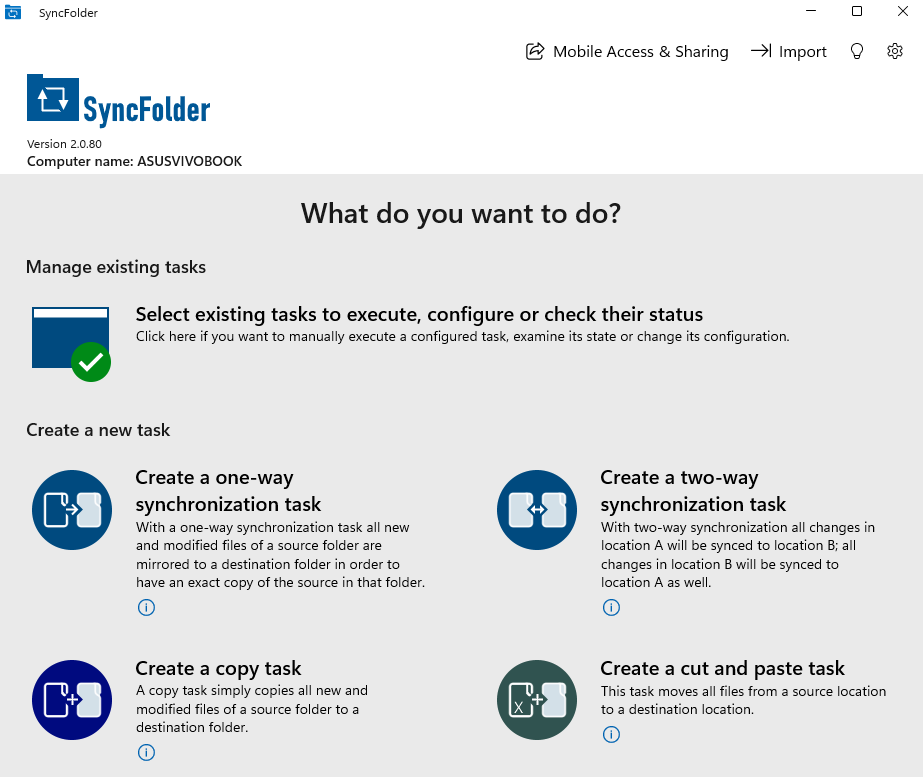
Welcome to the SyncFolder User Guide. SyncFolder is a free Windows app that keeps your files synchronized or backed up between internal and external drives, network shares (NAS), cloud storage, servers and mobile devices. Once a task is configured, SyncFolder can run it automatically in the background — at a fixed time, when you sign in or lock your PC, when files change, or when you plug in a USB drive.
What You Can Do with SyncFolder
- Synchronize folders one way (an exact mirror of the source) or two ways (changes on both sides are reconciled).
- Copy or move files to a backup location without ever deleting anything at the destination.
- Use almost any storage: local and USB drives, NAS shares, OneDrive, Google Drive, WebDAV cloud storage (Nextcloud, pCloud, Koofr, …), FTP/FTPS and SFTP servers, phones over USB, and Android devices over Wi-Fi.
- Import photos and videos from a camera, memory card or phone and choose exactly which items to copy.
- Share folders with your phone: the SyncFolder Android app can use your PC as a storage location.
How This Guide Is Organized
| Chapter | What it covers |
|---|---|
| Getting Started | Installation, the first start, the Home page and how SyncFolder runs in the background. Includes the permissions the app asks for. |
| Task Types | The difference between 1-way sync, 2-way sync, copy and cut-and-paste tasks, task groups and the photo/video import task. |
| Configuring a Task | Every setting on the Task configuration page, including the automatic triggers. |
| Selecting a Storage Location | All storage location types and how to connect to each of them. |
| Advanced Task Settings | Fine-tuning: change detection, conflicts, recycle bin, performance, file history, pre- and post-run actions. |
| Filters | Glob patterns to include or exclude folders and files. |
| Running and Monitoring Tasks | The Tasks page, the Status page, resolving conflicts and running tasks from the command line. |
| Working with the Android App | Pairing the PC with the SyncFolder Android app, in both directions. |
| App Settings | All options on the Settings page. |
| Error Messages | What the status and error messages mean and what to do about them. |
Several pages and dialogs in the app have a help button (tooltip: Click to learn more about this topic.) or a Learn more button that opens the matching page of this guide directly.
Last updated: October 30, 2026